How to set up the Stream Overlay
By InkbornForge ·
The Stream Overlay puts a full tournament broadcast package on your feature match: player names, records and inks, live lore and game score, the round clock, decklists, player histories, the room's metagame, and a break screen with standings or the bracket. You run it from one browser tab, it shows up in OBS as a single Browser Source, and the players keep score themselves on a tablet at the table.
This guide goes from nothing to on air.
Before you start: unlock it with Metafy
The Stream Overlay is one of the tools for members of The Forge tier on Metafy. Your subscription only unlocks the site once your Metafy account is linked to your InkbornForge account. Here's how:
- Subscribe to The Forge tier ($9.99/month) on InkbornForge's Metafy page. The cheaper Supporter tier doesn't unlock the app.
- Sign in to InkbornForge with Google from the login page.
- Open Settings and find the Metafy card. Click Connect Metafy, then approve the request on Metafy.
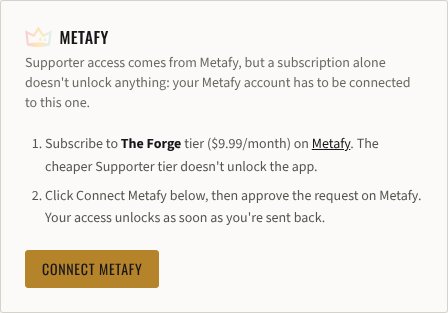
You're sent back to Settings, and your access unlocks as soon as you land. If you subscribe or upgrade after you've linked, access follows within about half an hour, or you can reconnect from the same card to apply it right away.
Join The Forge on Metafy → Membership supports the site and unlocks the Stream Overlay along with every other Forge tool.
Step 1: Create a table
Open the Stream Overlay. A table is one feature match you're streaming, and each table gets its own OBS link and controller link. Click Create your first table.
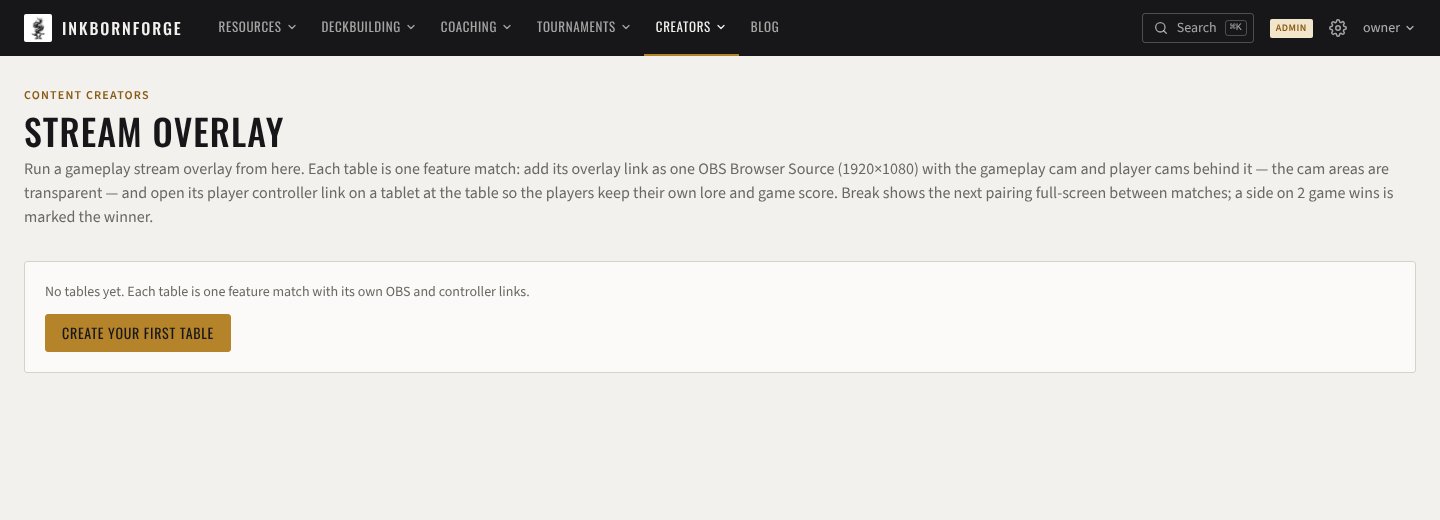
If you stream more than one table at an event, click New table for each one and switch between them with the Table dropdown. Give each one a name you'll recognize, like "Feature table" or "Table 2".
Step 2: Fill in the event
The Event card holds everything that stays the same all day:
- RPH event. Paste the event's Play Hub link and click Link. This is the big time-saver: the round clock follows the official RPH timer, and you can pull pairings, standings and the bracket straight from the event (more on that below).
- Event name, shown in the banner when there's no logo.
- Event logo and up to two sponsor logos. Paste an image URL or upload a PNG up to 2 MB.
- Round ("Round 5", "Top 8", "Finals") and a one-line banner note for announcements ("Top 8 starts at 5pm · 96 players").
- Theme fill and theme accent colors, if you want to match your event's branding. Reset to InkbornForge puts the defaults back.
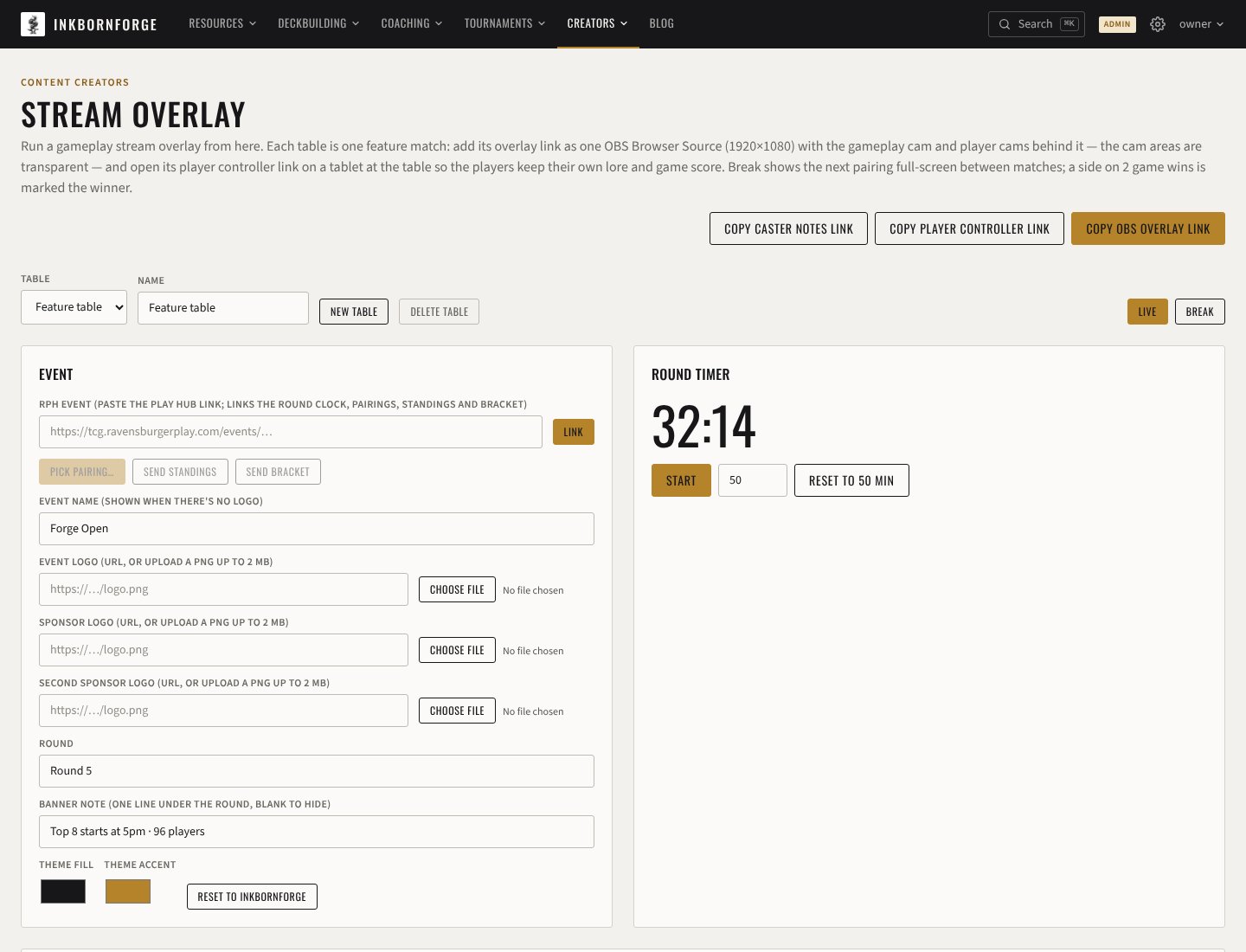
If you don't link an RPH event, run the clock yourself from the Round timer card: set the minutes, then use Start, Pause and Reset.
Step 3: Add the overlay to OBS
Click Copy OBS overlay link at the top of the panel. In OBS:
- Add a Browser Source to your scene and paste the link as its URL.
- Set the width to 1920 and the height to 1080.
- Put the Browser Source at the top of the source list so it sits over your cameras.
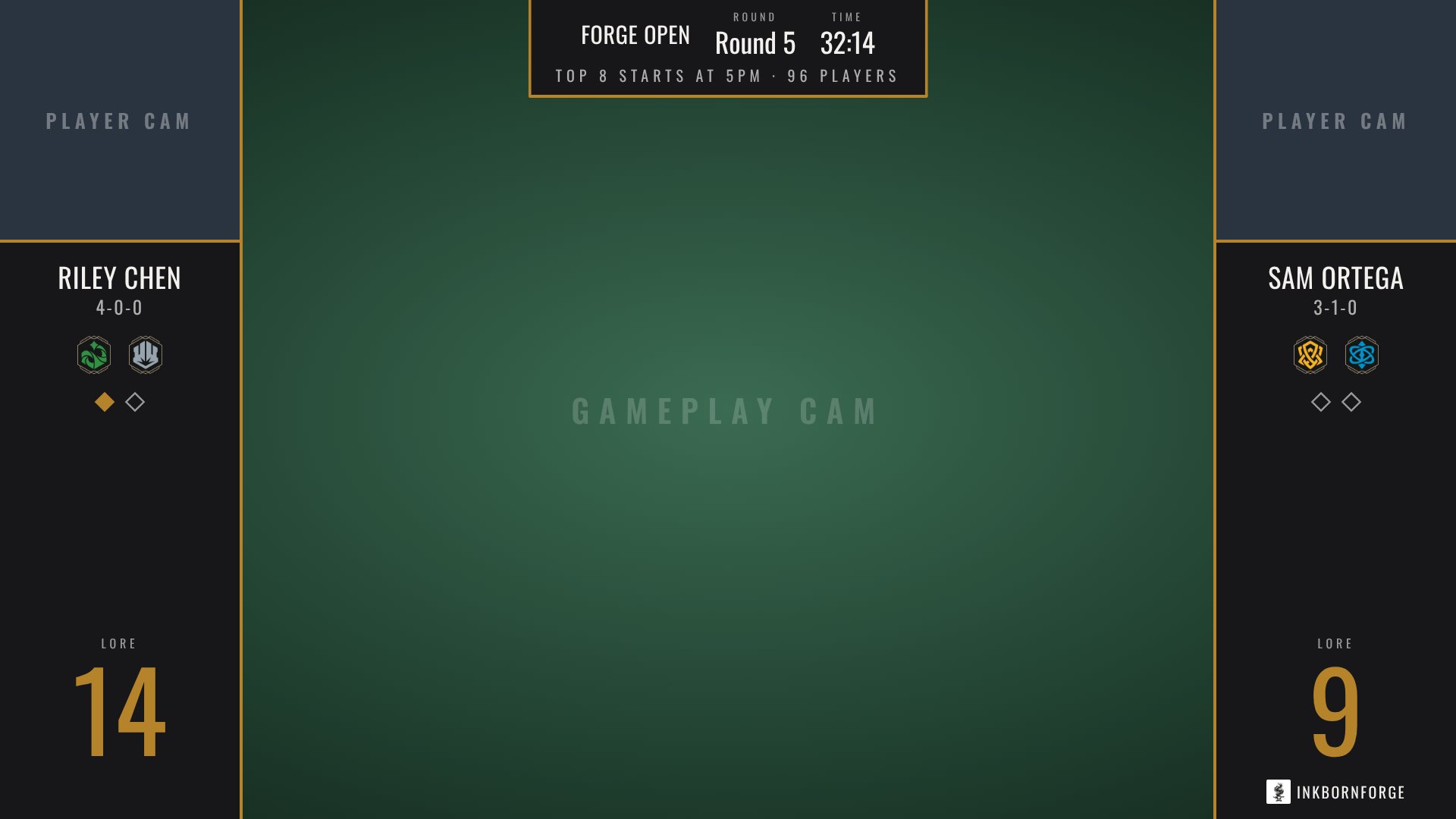
- Below it, add your gameplay cam filling the frame, and one player cam in each top corner.
The overlay is see-through everywhere except the player columns and the banner. The square in each top corner is a cutout for that player's camera: size and position the camera source to fill it.
You only do this once. The link belongs to the table and never changes, so the same scene works for every match all day, and at the next event.
Step 4: Hand the players a scorekeeper
Click Copy player controller link and open it on a tablet at the feature table. The players tap their own lore and game wins, and every tap shows up on stream within a moment.
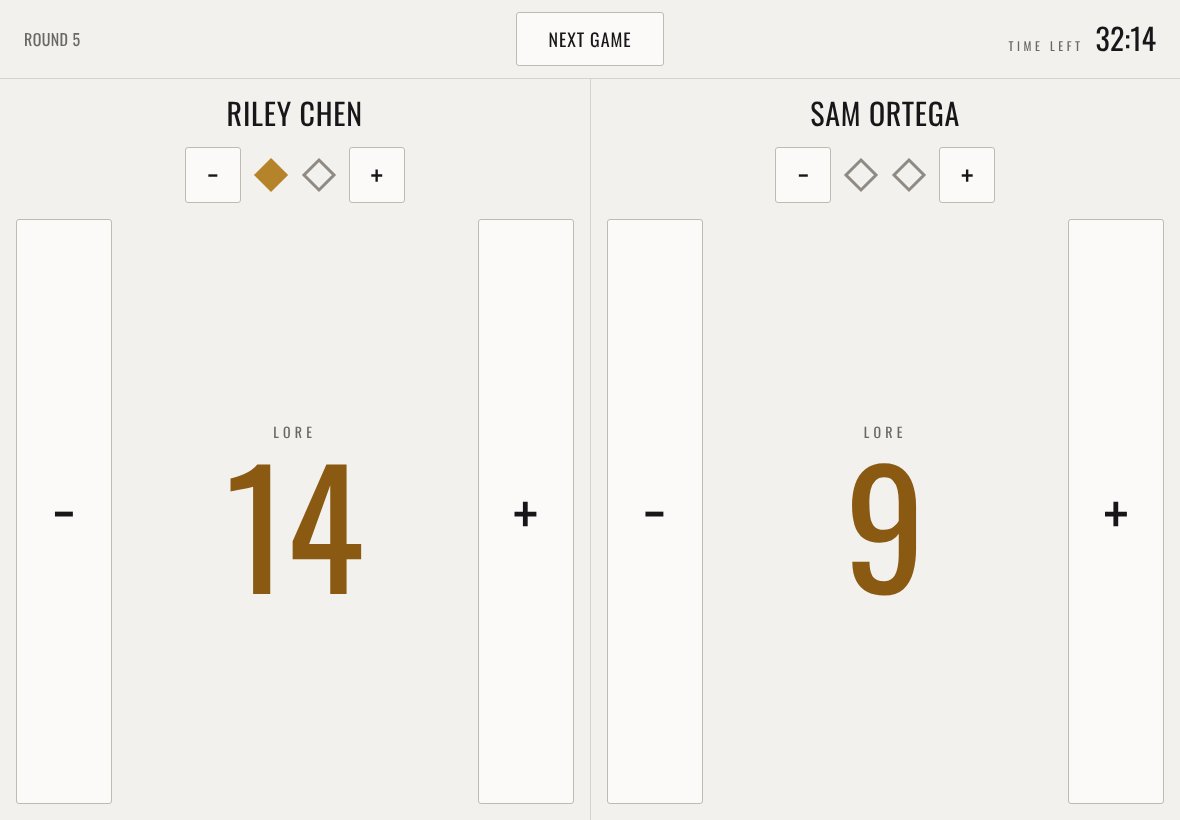
Between games, tap Next game twice to reset both lore counts to 0. The second tap is there so a stray touch mid-game can't wipe the score.
The controller link carries a key that only lets it change lore and game wins. The OBS link can't change anything, so it's safe to paste into a shared scene collection.
Step 5: Set up the match
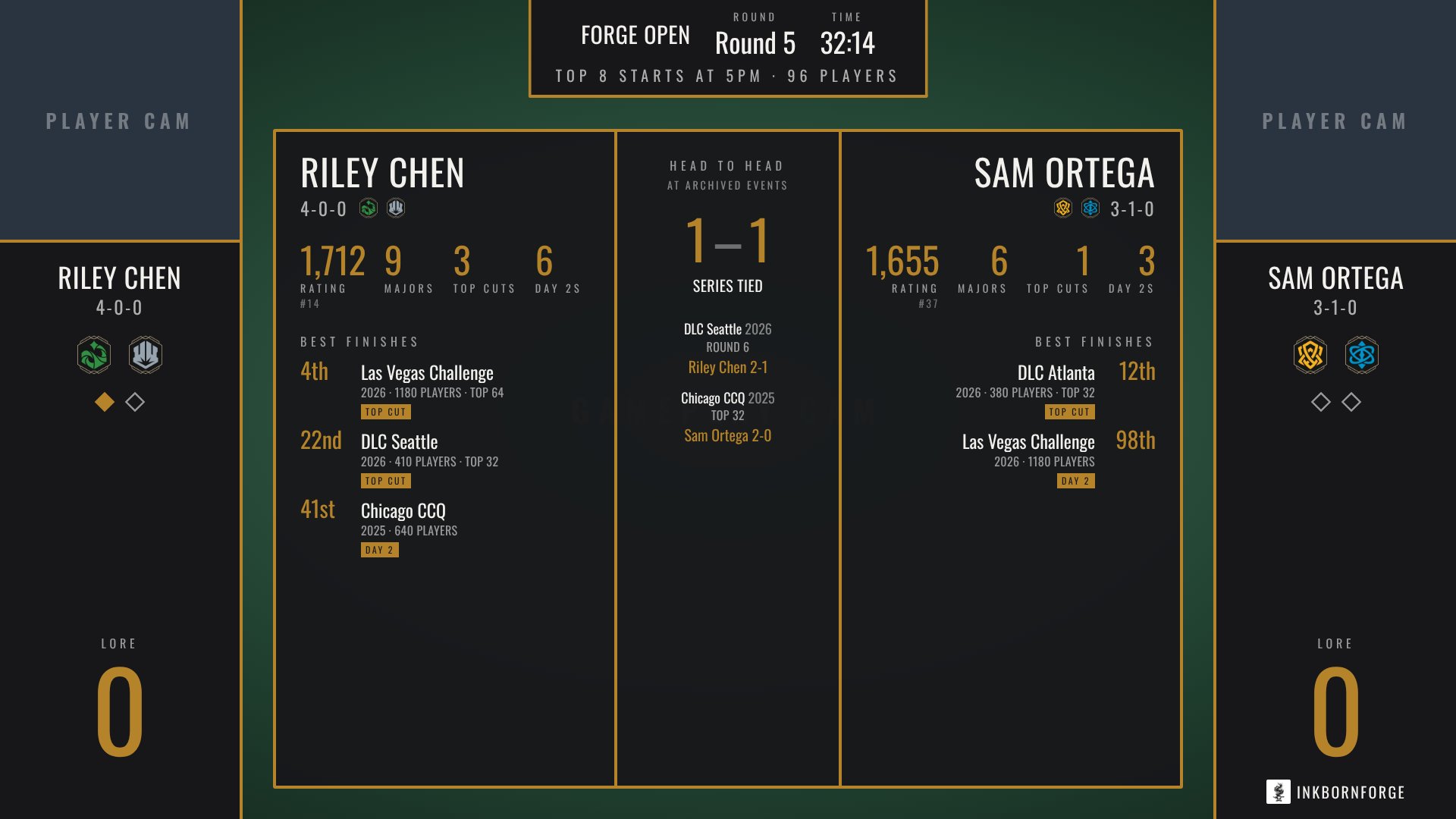
With the event linked, click Pick pairing… in the Event card, find the feature match in the current round, and send it. That fills in both names and records, resets the score, and loads a player card from the Tournament History archive: each player's rating, majors, best finishes and their head-to-head record.
Without a linked event, type the names and records into the Player 1 (left) and Player 2 (right) cards yourself.
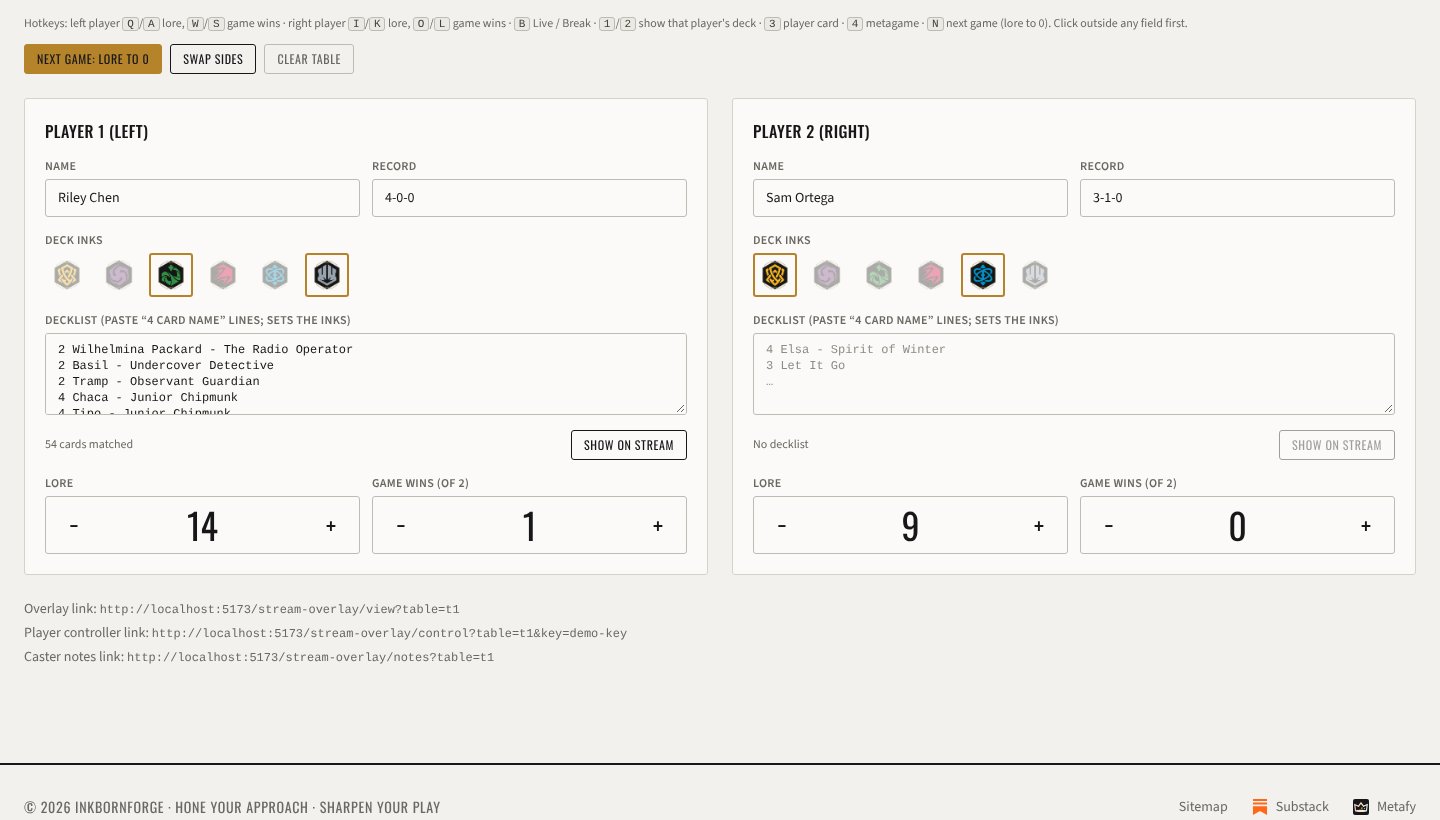
For each player:
- Deck inks. Click the two ink icons, or skip it: pasting a decklist sets them for you.
- Decklist. Paste the list as
4 Card Namelines. The panel tells you how many cards it matched and flags any line it didn't recognize. - Lore and game wins. The controller usually handles these, but you can correct them here too.
If the players sit on the opposite sides from your list, click Swap sides. When the match is over, Clear table empties the players, decklists and player card and keeps the event setup.
Step 6: Show things on stream
The space over the gameplay cam can hold one thing at a time. Each Show on stream button replaces whatever is up.
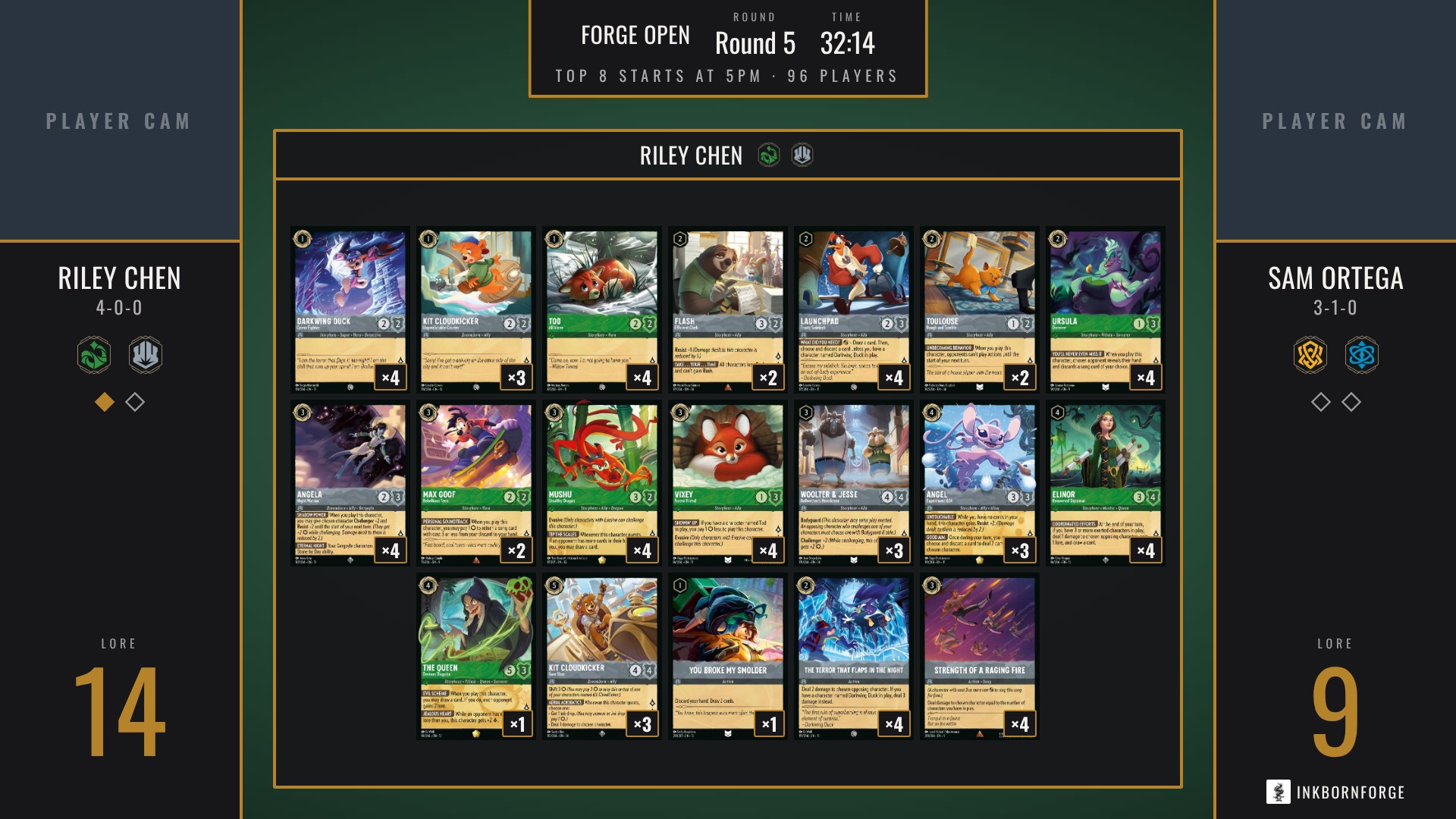
A decklist. Click Show on stream under either player's decklist to lay it over the gameplay cam.
The player card. From the Player card card, put both players' histories and their head-to-head on screen. It's a good fit between games.
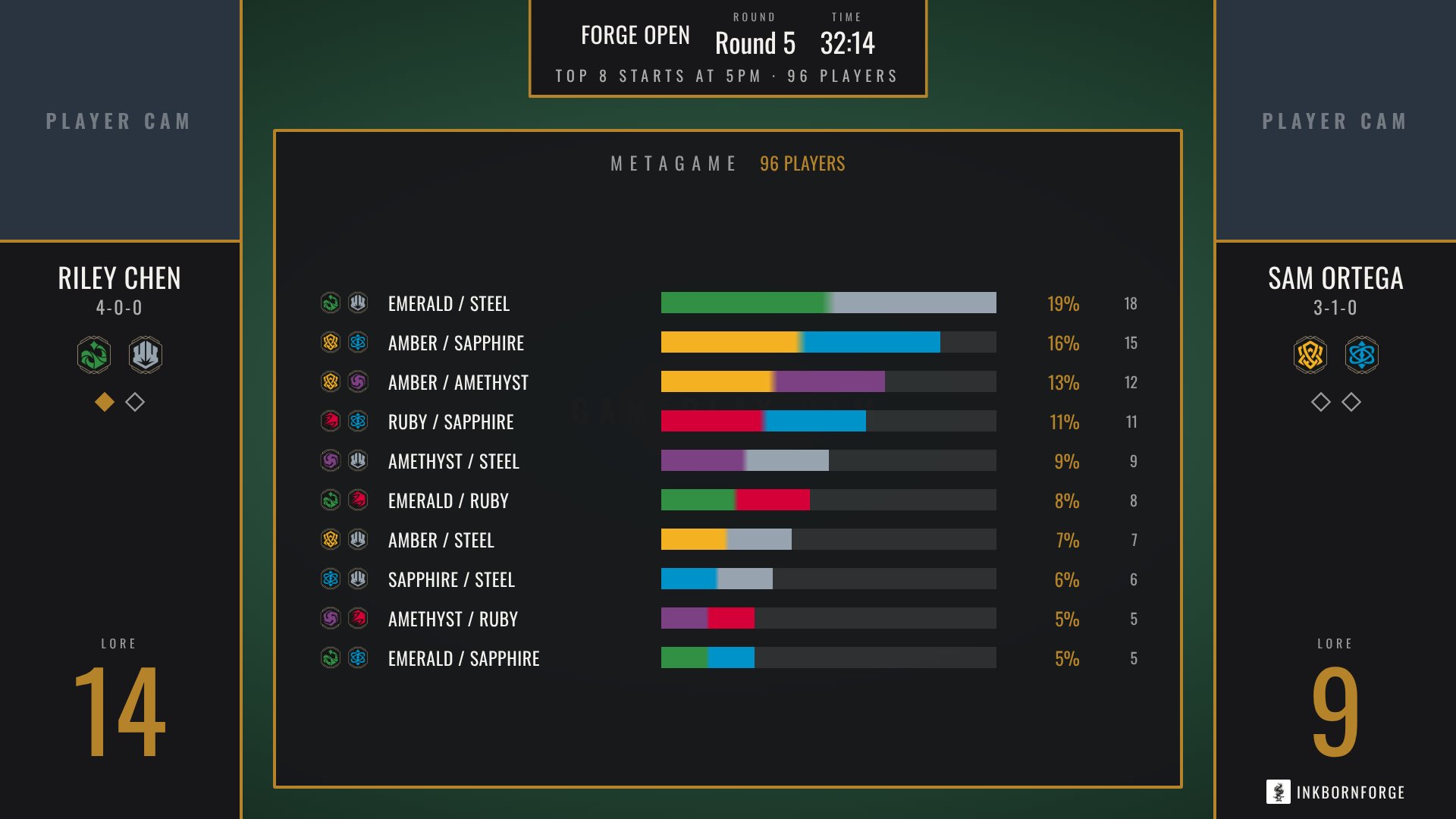
The metagame. In the Metagame card, add the room's decks one line per ink pair with a count, like Emerald/Steel 18. You can drop in the event's decklists PDF from the carde.io admin, use the bookmarklet in that card, or paste the output of Field Breakdown's "Copy for Stream Overlay".
Step 7: The break screen
Click Break (top right of the panel) between matches and the overlay turns into a full-screen card. The Break screen card picks what it shows:
- Pairing: the two players with the last result, or the next match.
- Standings: click Send standings in the Event card to take a snapshot from the linked event.
- Bracket: Send bracket once top cut starts.
- Metagame: the same chart as above, full-screen.
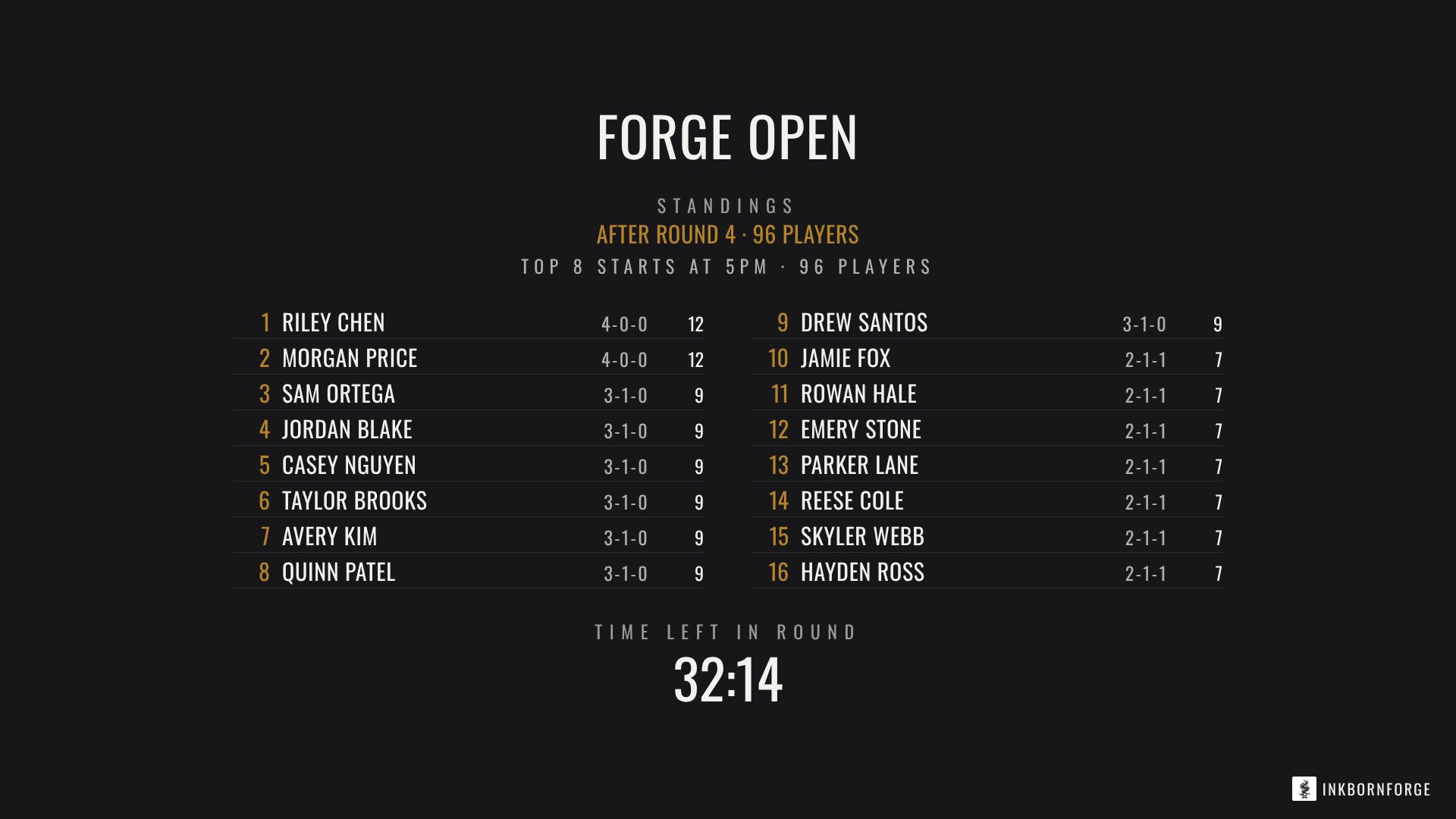
Standings and the bracket are snapshots, so send them again after each round. Click Live to go back to the match.
Bonus: caster notes
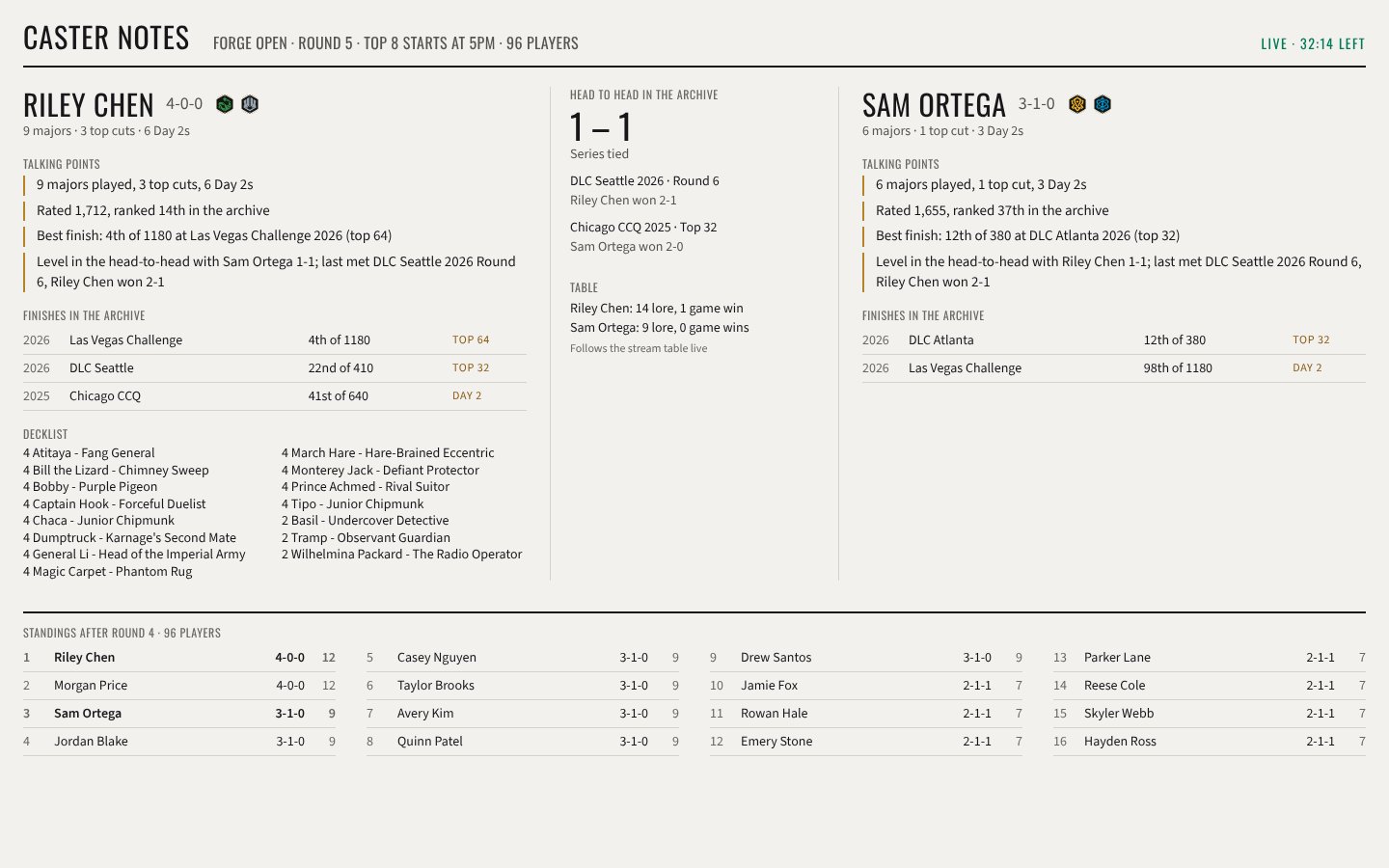
Click Copy caster notes link and open it on a second screen or send it to your commentators. It shows talking points for each player, their archive finishes, decklists, the head-to-head, the live score, and the full standings, all updating as the match goes.
Hotkeys for the operator
Click anywhere outside a text field in the panel, and you can run the whole show from the keyboard:
| Key | Action |
|---|---|
| Q / A | Left player lore up / down |
| W / S | Left player game wins up / down |
| I / K | Right player lore up / down |
| O / L | Right player game wins up / down |
| B | Toggle Live / Break |
| 1 / 2 | Show the left / right player's decklist |
| 3 | Show the player card |
| 4 | Show the metagame |
| N | Next game (lore to 0) |
Your checklist
- Join The Forge on Metafy and click Connect Metafy in Settings.
- Create a table and fill in the event; link the RPH event if there is one.
- Add the OBS overlay link as a 1920×1080 Browser Source above your cameras.
- Open the player controller link on a tablet at the table.
- Pick the pairing, paste the decklists, and go live.
See you on stream.